CQ TP results are at: http://www.tpqso.com/2018/results-2018/
CQ WE results are at: https://cqwe.cboh.org/2018.htm
Showing posts with label tpqso. Show all posts
Showing posts with label tpqso. Show all posts
Friday, February 8, 2019

Sunday, October 18, 2015
TPWINLOG File Locations
If you are using Windows 7 or Windows 10, and:
you can reach the data folder by clicking on Compatibility files, as shown in the screen shot below.
The Compatibility files button shown above for Windows 7 does not appear to be available in Windows 10, but you can open the file explorer at C:\Users and 'drill down' to
C:\Users\name\AppData\Local\VirtualStore\Program Files (x86)\TPQ
where 'name' is the Windows user name under which the program was run.
Another option is to search for tpqsolog using the search box near the upper right corner of the file explorer in either version of Windows. However, since AppData is a hidden folder, you may need to start your search there, rather than at a higher level in the folder (directory) tree. I found that a standard (non-admin) user search starting at C:\Users would not find the file tpqsolog.txt, but the same search starting from C:\Users\name\AppData does find the file.
- if you directed the TPWINLOG 2015 program to install in C:\TPQ then all the files you need (including TPLogOut.txt if you print to file) will be located in that folder.
- if you allowed TPWINLOG 2015 to install in the default folder:
C:\Program Files (x86)\TPQ
then your files (including TPLogOut.txt if you print to file) will be located at:
C:\Users\name\AppData\Local\VirtualStore\Program Files (x86)\TPQ
where 'name' is the Windows user name under which the program was run.
you can reach the data folder by clicking on Compatibility files, as shown in the screen shot below.
 |
| click above to enlarge |
C:\Users\name\AppData\Local\VirtualStore\Program Files (x86)\TPQ
where 'name' is the Windows user name under which the program was run.
Another option is to search for tpqsolog using the search box near the upper right corner of the file explorer in either version of Windows. However, since AppData is a hidden folder, you may need to start your search there, rather than at a higher level in the folder (directory) tree. I found that a standard (non-admin) user search starting at C:\Users would not find the file tpqsolog.txt, but the same search starting from C:\Users\name\AppData does find the file.
Wednesday, April 1, 2015
TPWINLOG Data Files
TPWINLOG 2015 creates the following data files to accomplish logging and scoring for the Telephone Pioneer QSO Party:
The location of these files depends upon how you installed the program. Section 2.1 of the ReadMe file has the following information and suggestion:
CASE 2: If you allow the program to install to its default directory, the program and data files will reside in two separate directories. The program will be found in C:\Program Files (x86)\TPQ, along with initial copies of two data files that are write-protected, as shown below.
To access the complete set of data files you must navigate to their directory by clicking the Compatibility files button as noted in red above. This will take you to the view that is shown below.
The examples above are from my installations on Windows 7 PCs.
If you must know, the full path to this directory is:
C:\Users\John\AppData\Local\VirtualStore\Program Files (x86)\TPQ
and AppData is a hidden directory, but is easily reached using the Compatibility files button shown previously. Your username will be where "John" appears. You can edit and save the data files in this directory as discussed in the second paragraph above.
If you only need to add some new entries to TPHistory.txt, you can accomplish that from within TPWINLOG. Enter the station's CallSign, Chapter and Name in the boxes near the bottom of the TPWINLOG window, then click HistoryFileAdd under the HistoryFile menu. Your new entry will be added to the end of the file.
Send me an email or post a comment if you have any questions.
- BonusCall.txt
- Chapsworked.txt
- CWchapsworked.txt
- LogInFile.txt
- TPHistory.txt
- TPLogOut.txt
- tpqsolog.txt
The location of these files depends upon how you installed the program. Section 2.1 of the ReadMe file has the following information and suggestion:
THE INSTALL PROGRAM WILL INDICATE THAT IT IS GOING TOCASE 1: If you follow this suggestion you will easily find all of the data files in C:\TPQ, as shown in the Windows Explorer screen shot below.
WRITE THE FILES TO: C:\Program Files\TPQ
The install program will create the TPQ folder in the Program
Files folder. OR .. you can click the Change Directory command
button and install to some other folder. Those using Windows
Vista or Windows 7 may wish to change the path to C:\TPQ to
prevent file redirection. This makes finding program written (data)
files much easier.
 |
| Click to enlarge. |
CASE 2: If you allow the program to install to its default directory, the program and data files will reside in two separate directories. The program will be found in C:\Program Files (x86)\TPQ, along with initial copies of two data files that are write-protected, as shown below.
 |
| Click to enlarge. |
 |
| Click to enlarge. |
If you must know, the full path to this directory is:
C:\Users\John\AppData\Local\VirtualStore\Program Files (x86)\TPQ
and AppData is a hidden directory, but is easily reached using the Compatibility files button shown previously. Your username will be where "John" appears. You can edit and save the data files in this directory as discussed in the second paragraph above.
If you only need to add some new entries to TPHistory.txt, you can accomplish that from within TPWINLOG. Enter the station's CallSign, Chapter and Name in the boxes near the bottom of the TPWINLOG window, then click HistoryFileAdd under the HistoryFile menu. Your new entry will be added to the end of the file.
 |
| Click to enlarge. |
Send me an email or post a comment if you have any questions.
Thursday, March 19, 2015
TPWINLOG 2015 -- History File
Based on some questions about how the history file is updated during contact entries in TPWINLOG, I performed some tests this morning.
When the program is installed, the original, default history file (from the downloaded zip file) TPHistory.txt is put into place. While the program is used, the first contact with new station that is not found in the original history file is added to the end of the history file.
We recommend that you practice using the program well in advance of the event, entering practice contacts. Before you start participating in the event you need to delete the log of practice contacts by choosing File, DeleteLog, as shown below.

My testing confirms that this delete function will clear out the following files:
tpqsolog.txt
Chapsworked.txt
CWchapsworked.txt
It will not clear out the TPHistory.txt file. Subsequent use of the program will make use of any new station history data (not in the original history file) that was entered during your earlier use of the program. I tested this by entering a fictitious call sign that I knew was not in the original history file.
Further testing reveals that changes (e.g. chapter #) made during subsequent contacts with any station will not be saved to the history file. However, TPWINLOG will (apparently) consult the tpqsolog.txt file first when subsequent contacts are made with the station whose details were changed on the previous contact entry. Naturally, those changes will be lost when the practice log file is deleted. Any station details that you wish to preserve need to be entered directly into the history file (using a plain text editor) so that they will be found when you start over with a blank log file.
Also, if you do make changes to station data during the event, especially chapter changes, you will want to edit your final log file prior to printing results so that you don't end up with something like 2 chapter numbers recorded for the same call sign.
Please send me email if anything above is not clear or if you have other questions.
When the program is installed, the original, default history file (from the downloaded zip file) TPHistory.txt is put into place. While the program is used, the first contact with new station that is not found in the original history file is added to the end of the history file.
We recommend that you practice using the program well in advance of the event, entering practice contacts. Before you start participating in the event you need to delete the log of practice contacts by choosing File, DeleteLog, as shown below.
tpqsolog.txt
Chapsworked.txt
CWchapsworked.txt
It will not clear out the TPHistory.txt file. Subsequent use of the program will make use of any new station history data (not in the original history file) that was entered during your earlier use of the program. I tested this by entering a fictitious call sign that I knew was not in the original history file.
Further testing reveals that changes (e.g. chapter #) made during subsequent contacts with any station will not be saved to the history file. However, TPWINLOG will (apparently) consult the tpqsolog.txt file first when subsequent contacts are made with the station whose details were changed on the previous contact entry. Naturally, those changes will be lost when the practice log file is deleted. Any station details that you wish to preserve need to be entered directly into the history file (using a plain text editor) so that they will be found when you start over with a blank log file.
Also, if you do make changes to station data during the event, especially chapter changes, you will want to edit your final log file prior to printing results so that you don't end up with something like 2 chapter numbers recorded for the same call sign.
Please send me email if anything above is not clear or if you have other questions.
Wednesday, September 3, 2014
TPWINLOG -- Editing log file
During a morning HF roundtable QSO we discussed the ability to edit a log file created by TPWINLOG. Section 7 of the program's ReadMe file discuss the format of the log file.
A user may want to edit the log file in scenarios such as:
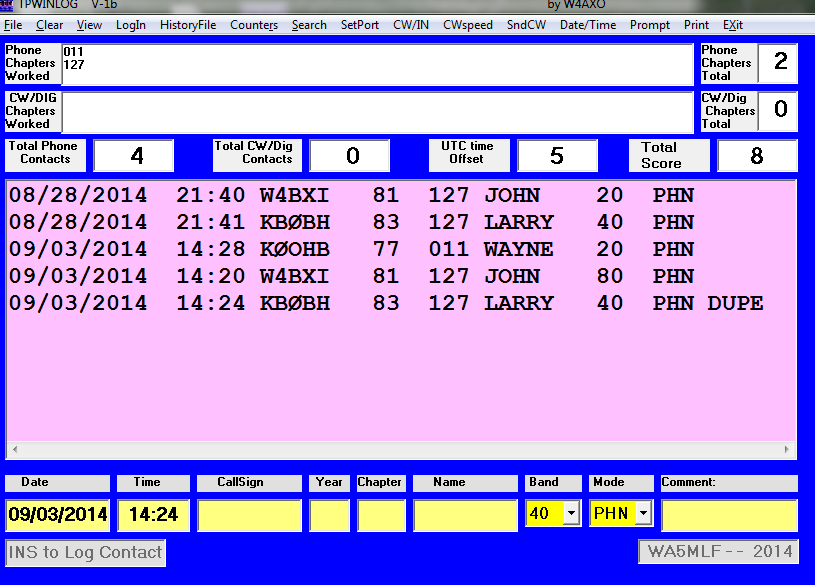
The next screen shows the QSOLOG5.TPQ file opened in a plain text editor. In this example, the operator forgot to change the band to 80 m, but logged the contact as a dupe for later edit. He could have changed the band before Inserting (logging) the contact.

The next screen highlights the changes in the band and the comment field (removing the DUPE tag).
 Finally, when the TPWINLOG program is re-started, the log screen reflects the revised tally of 5 contacts.
 As noted previously, it's a good idea to practice using the program to log practice contacts and to print the log results. Just be sure to delete the practice contact log before CQ TP starts. See section 4.1 of the program's ReadMe file.
A user may want to edit the log file in scenarios such as:
- Error (e.g. name or call sign) discovered just after a contact is logged
- Duplicate contact logged intentionally with DUPE tag for later correction
- Error in band or mode recognized and noted for correction while not operating the event
UPDATE 23 Oct 2020: In the most recent versions of the program the log file is named tpqsolog.txt. The instructions below are otherwise still valid.
After exiting the TPWINLOG program, during a break in operating or after the event concludes, you may use a plain text editor program (e.g. Notepad) to edit your log file QSOLOG5.TPQ. It would be prudent to first make a backup copy of the file. When editing the file, it is best to avoid changing the lengths of certain data elements: chapter, band, mode, date, time. The call sign, name, and comment fields will be of variable length. After editing QSOLOG5.TPQ, when you run TPWINLOG the contact log display and scoring will be updated to reflect the edits. Now you can run the Print feature to generate the output log report on paper or in a file for emailing.
Below is a series of screen shots showing a log of 5 practice log entries and an edit applied to one contact. (Click on any image to expand the view.) The first shows a 5th contact was identified by the program as a duplicate, but was accepted by the operator as a DUPE entry and is not counted in the tally of 4 contacts.
The next screen highlights the changes in the band and the comment field (removing the DUPE tag).
Thursday, August 28, 2014
TPWINLOG Installation


Click on the button shown in this screen shot to continue. You have the option of changing the installation directory before proceeding, as noted in section 2.1 of the Readme file. Some pop-up messages may appear as described in section 2.2.


Here is a magnified view of the resulting shortcut icon on the desktop.


Be sure to study the program usage details in sections 4 through 10 of the ReadMe file.
You should practice using the program before the event, but be sure to delete your file of practice contacts before you start logging for the event. See section 4.1 of the ReadMe file.
Wednesday, February 8, 2012
Telephone Pioneer QSO Party - Results & Announcement
The Telephone Pioneer QSO Party web site now has the results and discussion for the 2011 event, which was held in October for the first time. Once again W4BXI was very close to N6TP's top score. W4AXO was also among the top participants.
The above web site will also soon include an announcement about the 2012 event, which will take place on October 20-21.
The above web site will also soon include an announcement about the 2012 event, which will take place on October 20-21.
Subscribe to:
Posts (Atom)